
OtoGönderi is a Facebook group posting automation tool built for businesses that post regularly in Facebook groups. You prepare your post or Marketplace listing once and choose the groups and Facebook accounts to use; the OtoGönderi Chrome extension then works through the jobs in order, within the hours you set, waiting a random time between each post.
For estate agents, car dealers, second-hand sellers, local traders and service companies, Facebook groups are still one of the channels that bring in the most customers. But entering the same listing into dozens of groups one by one takes hours every day, nobody remembers which group was posted to when, and a lost group membership goes unnoticed. OtoGönderi turns this work into a queue: each row is a match of one post, one account and one group, and the status, result and reason for each one are recorded.
The panel runs in the browser and needs no installation or server. You group your groups and posts into collections, set up scheduling in two steps and follow the results with daily, hourly and weekly charts. You can pause posting at any moment; the queue is kept and the extension simply stops receiving jobs.
Who is Facebook group posting automation for?
- Estate agents: Agencies that want their sale and rental listings to appear regularly in city, district and village groups.
- Car dealers: Sellers who publish vehicle listings on Marketplace and in buy-and-sell groups with price, location and condition.
- Second-hand and retail sellers: Shops sharing products as Marketplace listings or as campaign posts in groups.
- Local traders and service firms: Businesses advertising stoves, boilers, plumbing, cleaning or removals in local groups.
- Social media managers: Teams running scheduled posting across hundreds of groups with several Facebook accounts.
- Campaign periods: Anyone who needs to get a sale, opening or seasonal announcement into many groups quickly.
What makes OtoGönderi different
Group posts and Marketplace listings in one place
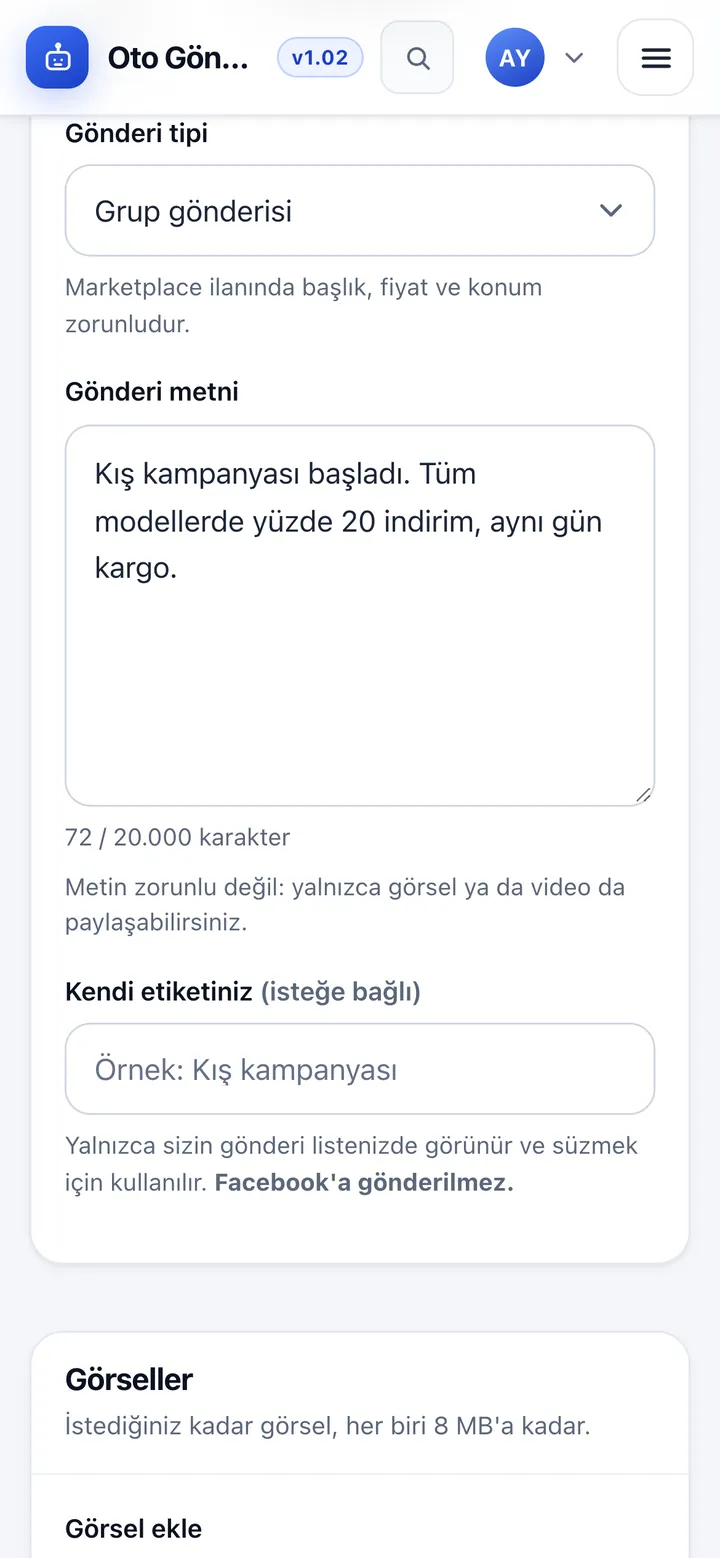
Just choose the post type. A group post has text, images and video; a Marketplace listing also has a title, price, currency, condition, product tags and location. Groups that accept only listings are detected and plain posts are skipped there, so nothing is written into the wrong format.
Multiple accounts, even distribution
You can add several Facebook accounts. When you schedule, jobs are spread evenly across your active accounts so the load does not pile up on one. Deactivate an account and it receives no new jobs.
Timing that behaves like a person
After each post the extension waits a random time between the minimum and maximum you set. You choose the working hours, working days and a daily posting quota. Waiting a random time instead of a fixed interval reduces the risk of the account being flagged for automated behaviour.
The result of every job is visible
In the posting queue, each row is a post, account and group match. You filter pending, completed and failed jobs separately. When a job fails, the reason is recorded in plain words: the account is not a member of the group, the group accepts only listings, or posting rights in the group are restricted.
Runs in the browser, nothing to install
OtoGönderi consists of a web panel and a Chrome extension. You use the panel from any browser, including your phone; the posting itself is done by the extension running in Chrome on your computer. You do not need to rent a server or install software.
How do you prepare a post or Marketplace listing?
Post text and tag
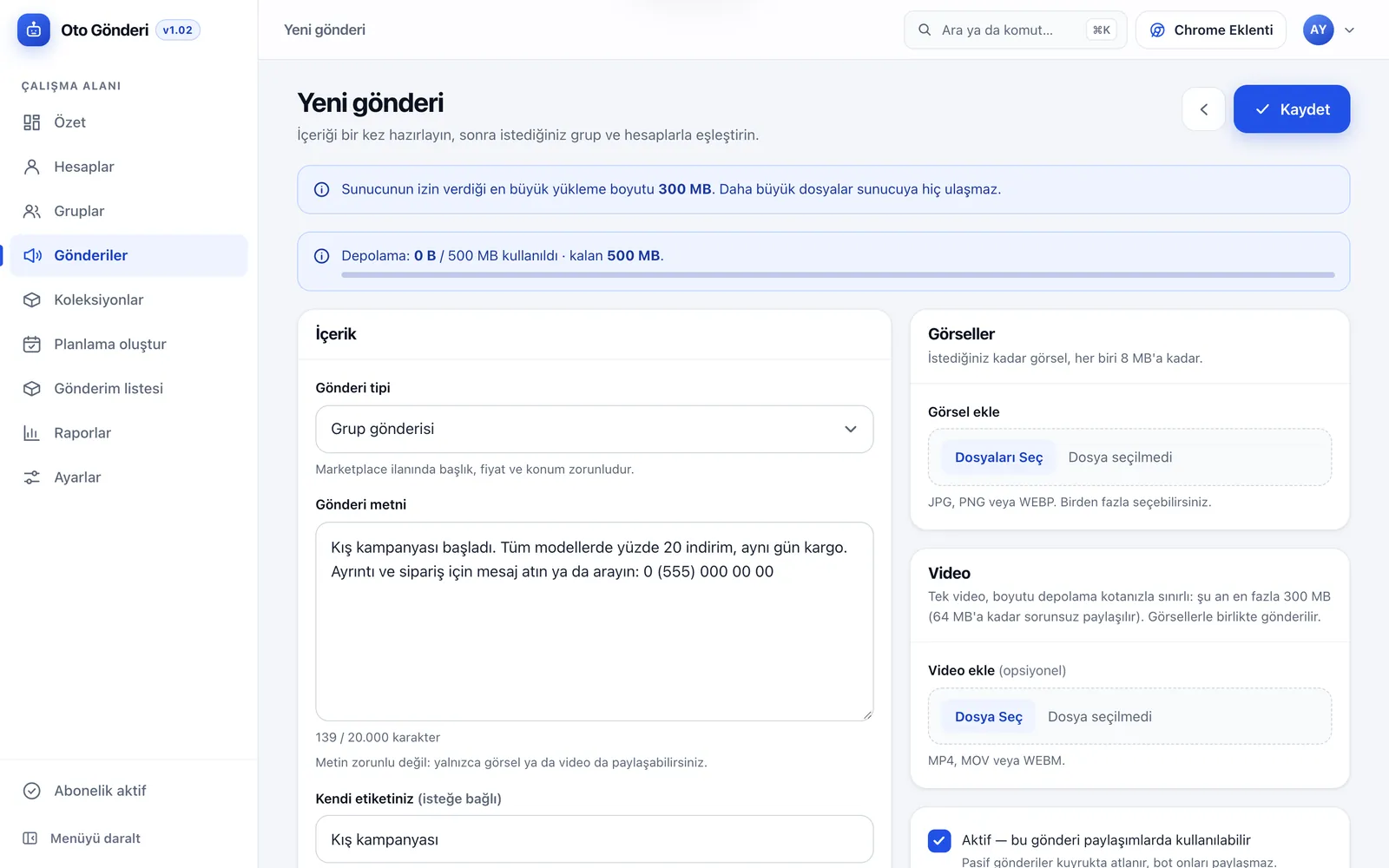
Post text can be up to 20,000 characters, with a live character counter. Text is optional; you can share only images or a video. Add your own tag to filter posts in your list; the tag is never sent to Facebook and only appears in your own list.
Images and video
Add as many images as you like, each up to 8 MB in JPG, PNG or WEBP. A single MP4, MOV or WEBM video can be sent along with the images; its size is limited by your storage quota, and videos up to 64 MB post without issues. Your remaining storage is always shown on screen.
Marketplace details
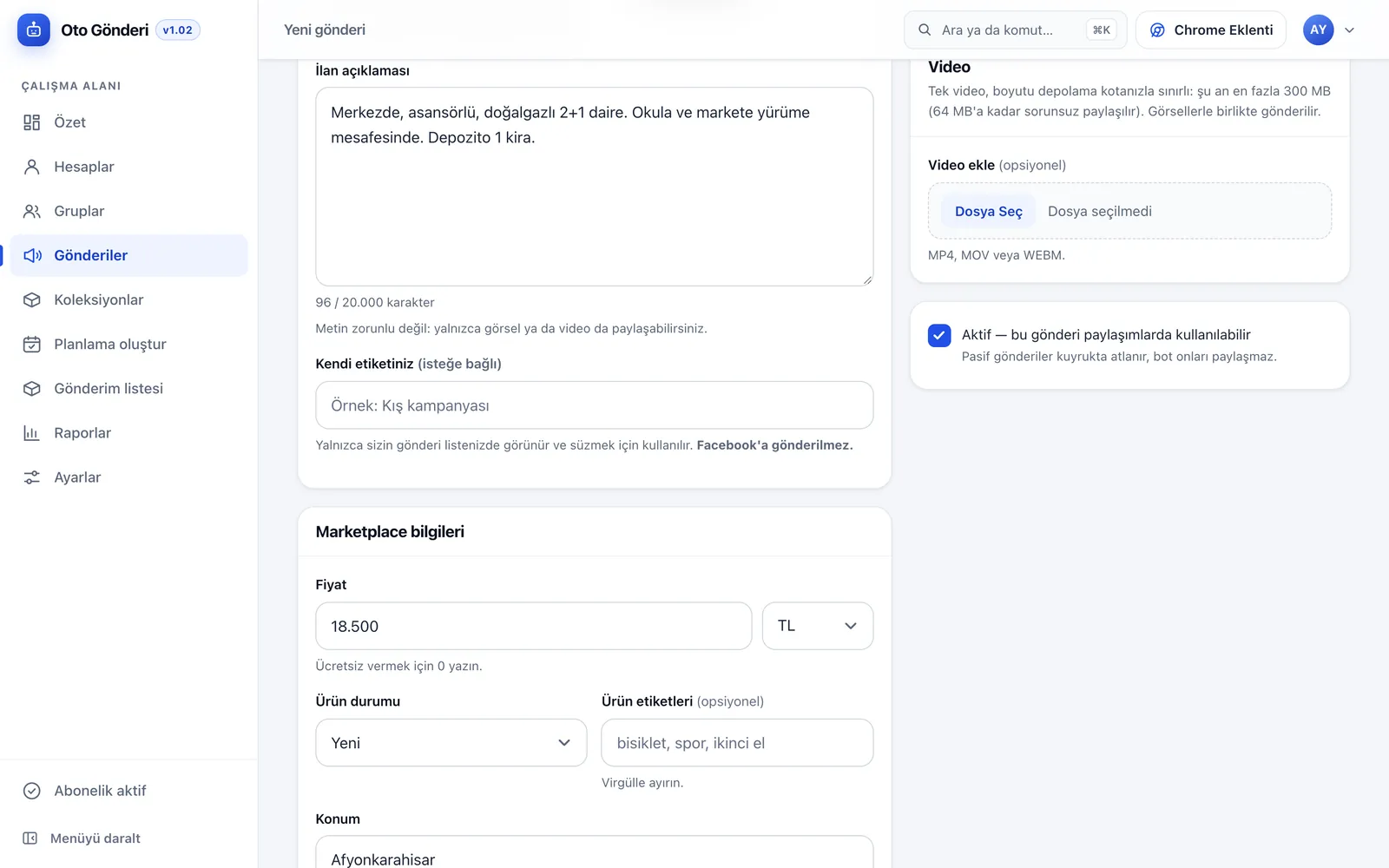
When you choose a Marketplace listing, the title, price and location become required. You also enter the currency, the condition of the item and product tags. Listing details are saved once, so you do not have to retype the same listing for every group.
Active and inactive posts
When you set a post to inactive, its jobs are skipped in the queue and the extension does not post it. Pause a sold item or an expired campaign without deleting it, and switch it back on with one tap when needed.
Post list and filters
Posts are listed under group post, Marketplace, active and inactive tabs. Sort by newest, oldest, last edited, title or inactive first, and find what you need among hundreds of posts in seconds.
Which modules are in the panel?
Overview and posting control
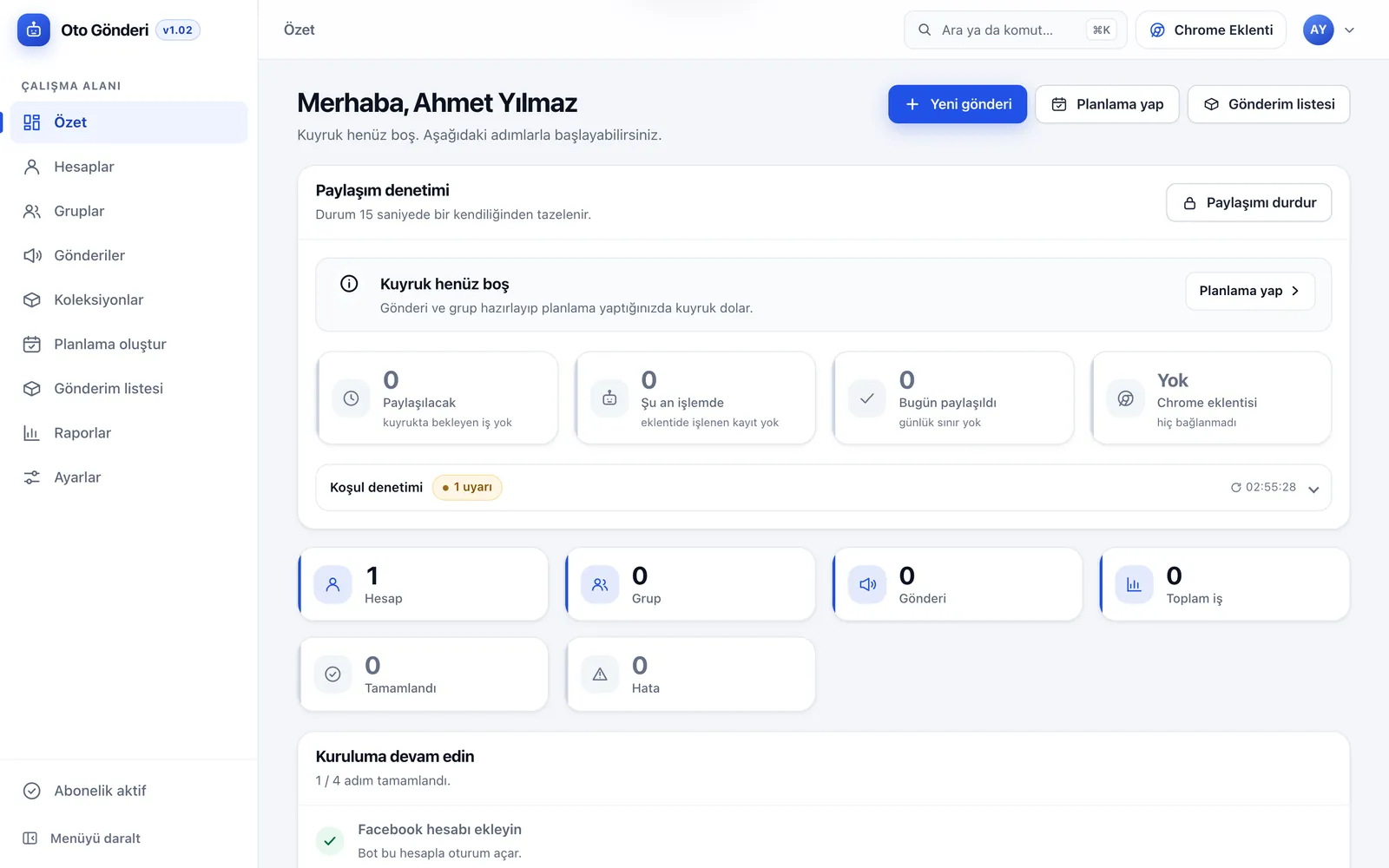
The overview shows the live state of the queue and refreshes itself every 15 seconds: jobs to post, jobs in progress and jobs posted today, the Chrome extension’s connection status and condition warnings. The Pause posting button stops jobs going to the extension without touching your settings. A daily posting chart for the last 30 days sits on the same screen.
Facebook accounts
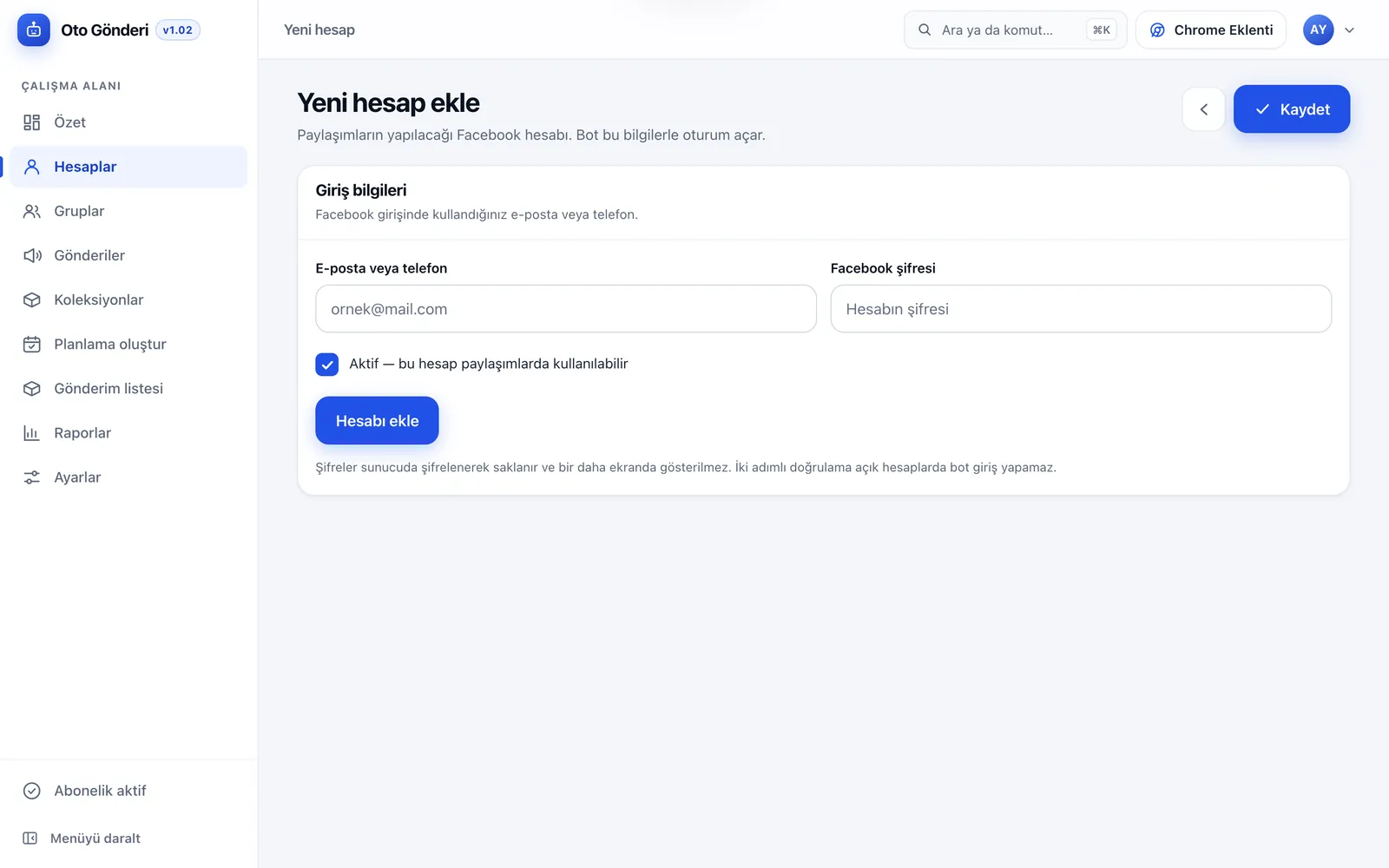
Add the accounts to post from with an email or phone number and password. Passwords are stored encrypted on the server and never shown again. Select accounts in bulk to activate, deactivate or delete them.
Groups
Add the Facebook groups to post in one by one or in bulk. Groups are split into active and inactive, and inactive groups are not scheduled. Remove or deactivate groups where your membership has lapsed or posting is no longer allowed.
Collections
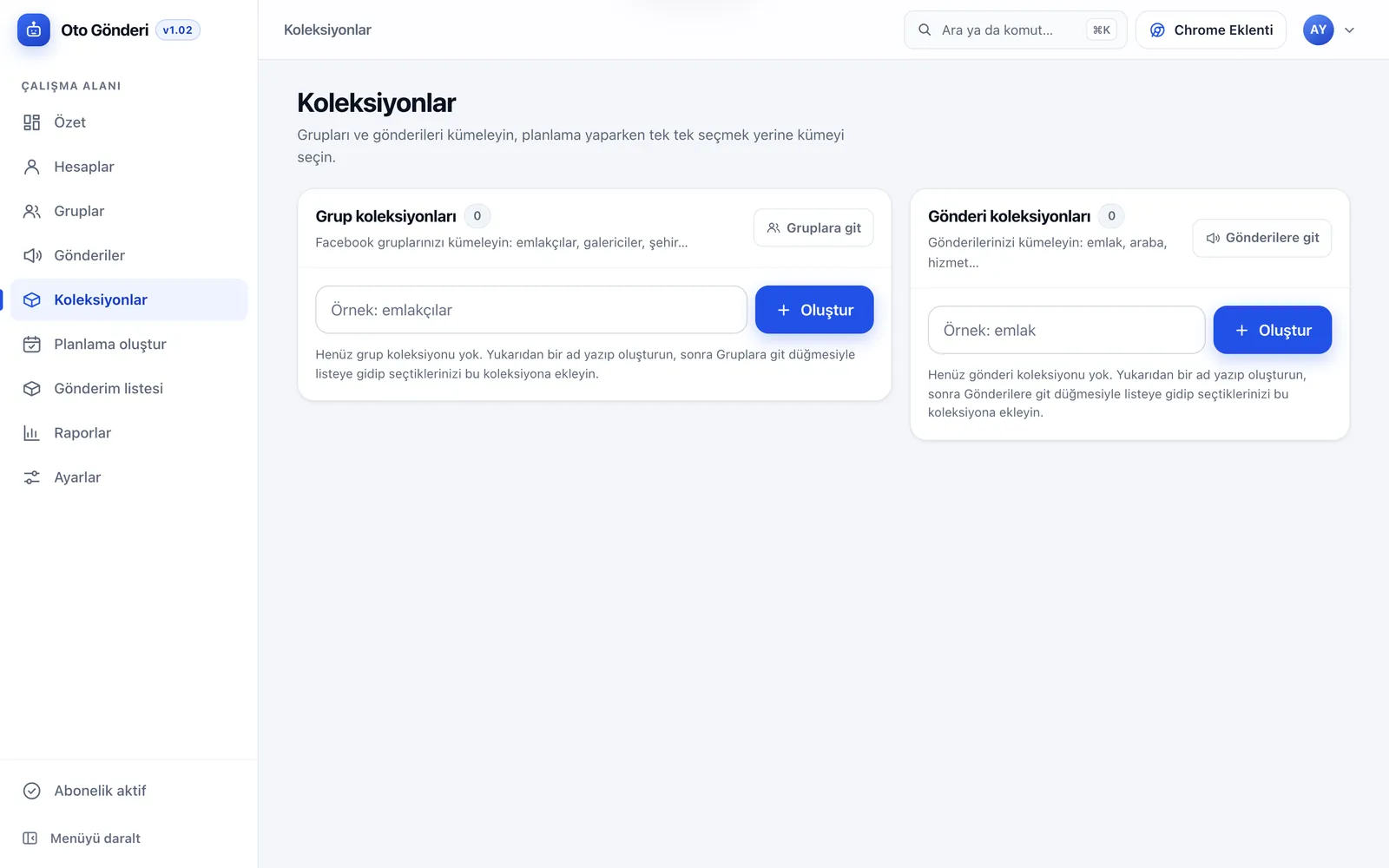
Group your groups and posts into collections, such as estate agent groups, car dealer groups or city groups, and property, car or service posts. When scheduling, pick a collection instead of selecting groups one by one, and send your campaign to the right audience in a few clicks.
Create a schedule
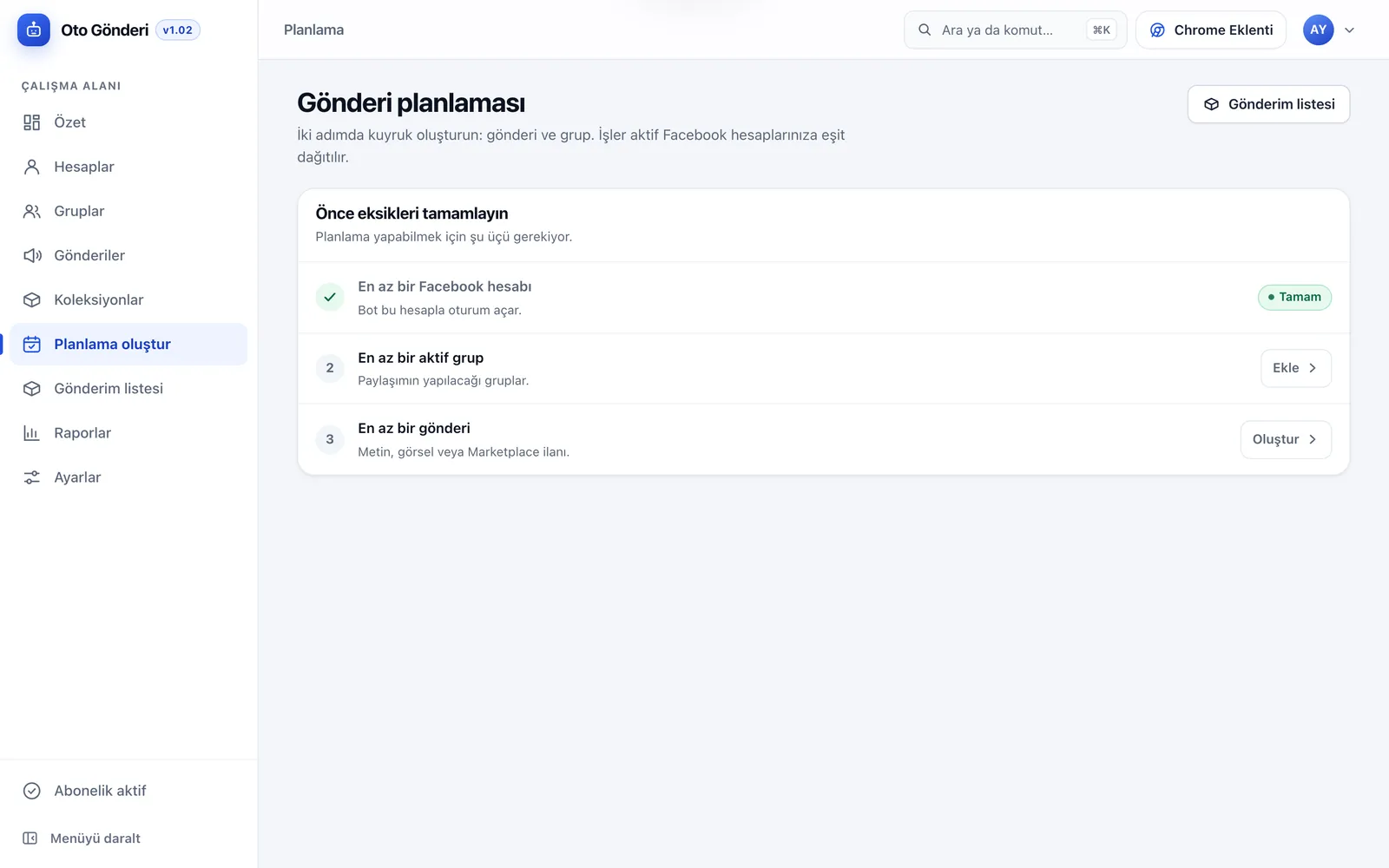
The queue is built in two steps: choose the posts and the groups. The system creates a job for each post and group and spreads the jobs evenly across your active Facebook accounts. If a condition is missing (at least one account, one active group and one post), the screen shows exactly what is missing.
Posting queue
This is the job queue the extension works through. Total, pending, completed and failed jobs are shown as cards; filter by status and sort newest first. The New schedule button adds jobs to the queue from the same screen.
Reports
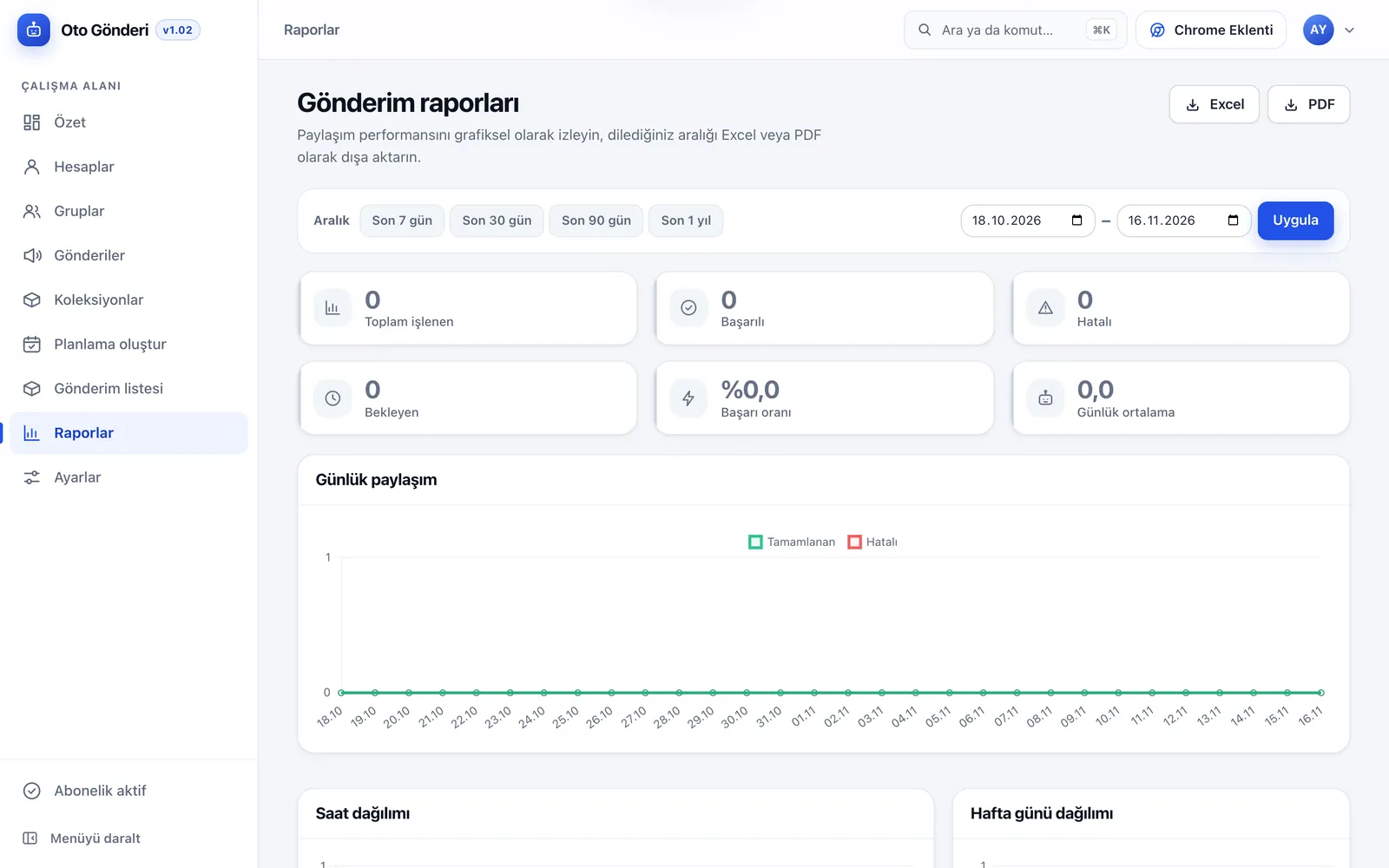
For the last 7, 30 or 90 days, the last year or a custom range, see total processed, successful, failed and pending posts, the success rate and the daily average. Daily posting, hour-of-day and day-of-week charts show which times work best. Export the selected range as Excel or PDF.
Posting settings
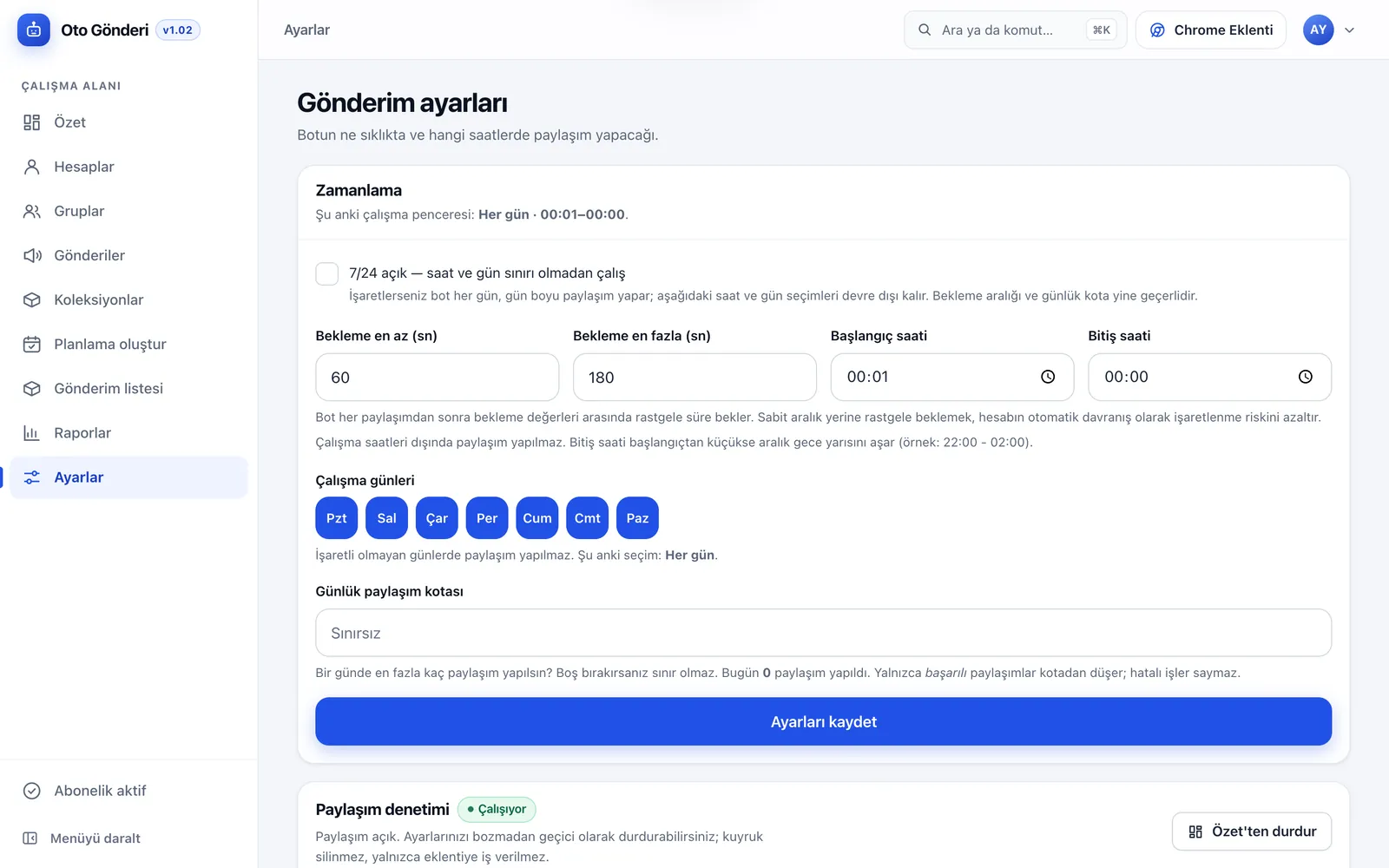
Turn on 24/7 operation or set a start and end time; if the end is earlier than the start, the window runs past midnight. Choose working days one by one, enter the minimum and maximum wait in seconds and set a daily posting quota. Only successful posts count towards the quota.
Extension token and profile
After installing the Chrome extension, enter the token from the settings screen and the extension connects to your queue. If you suspect the token has leaked, renew it in one click. On the profile screen you update your details and password; an email change is completed through a confirmation link sent to the new address.
Quick search and setup steps
Press Ctrl+K or ⌘K to reach any page or action in seconds. On first sign-in, the overview shows a four-step setup: add a Facebook account, build your group list, prepare a post or listing, and schedule. Each step is ticked off as you complete it.
How does OtoGönderi work?
- Add your account: Add the Facebook account that will post to the panel.
- Define your groups: Add the groups one by one or in bulk, and sort them into collections if you like.
- Prepare the content: Create the group post or Marketplace listing with text, images and video.
- Schedule: Choose posts and groups; jobs are spread across your active accounts and added to the queue.
- Connect the extension: Install the Chrome extension and enter your token; it starts posting within your working hours.
- Follow the results: Track what was posted where from the overview, the posting queue and reports.
Before you buy: posting is done by the Chrome extension on your computer, so the computer and Chrome must stay open and the posting tab visible while it runs. The extension cannot sign in to Facebook accounts with two-step verification switched on. Your account must be a member of the groups and have permission to post there. Complying with Facebook’s terms is the account holder’s responsibility; random waits and a daily quota reduce risk but cannot guarantee that Facebook will never restrict an account.
Posting by hand compared with OtoGönderi
| Task | By hand | OtoGönderi |
|---|---|---|
| Sharing one listing to many groups | Group by group | Queued with one schedule |
| Several Facebook accounts | Switching between accounts | Jobs spread evenly across accounts |
| Interval between posts | Depends on the person | Random between minimum and maximum |
| Working hours and days | — | ✓ |
| Daily posting quota | — | ✓ |
| Marketplace listing details | Retyped every time | Saved once |
| Group and post collections | — | ✓ |
| Result and failure reason for every post | Not tracked | In the posting queue |
| Daily, hourly and weekly reports | — | ✓ Excel and PDF |
| Pausing all posting in one tap | — | ✓ queue is kept |
OtoGönderi comes as a single plan with every module included. There are no plan differences for the number of posts, groups or shares; how much is posted is decided by your working hours, wait times and daily quota.
What the price includes
- One year of use: Use of the OtoGönderi panel and Chrome extension for a full year.
- Account opening: Our team opens your account and activates your subscription; there is nothing to install.
- All modules: Accounts, groups, posts, collections, scheduling, posting queue, reports and settings.
- Media storage: Storage assigned to your account for images and video, with usage shown on screen.
- Updates: Updates to the extension and panel as the Facebook interface changes.
- Support: Help by WhatsApp and email throughout your subscription.
Getting started
- Place your order: Choose the yearly subscription and create your account.
- Payment: Pay with Visa, Mastercard, American Express, Apple Pay or Google Pay through Stripe, or by bank transfer for USD, EUR and GBP orders. Your invoice is created automatically.
- Your account is opened: Your OtoGönderi panel account is opened and your sign-in details are sent to you.
- Install the extension: Download the Chrome extension from the panel, install it and enter your token.
- Create your first schedule: Add your accounts, groups and posts and build the schedule.
Infrastructure, security and support
The panel runs on servers operated by ADK Yazılım; infrastructure, backups and updates are our responsibility. Facebook passwords are stored encrypted on the server and never shown in the panel again. The extension connects to your queue with a personal token; if it leaks, renew it from the settings screen and the old token stops working.
You follow your orders, invoices and support tickets from your customer panel. The subscription is yearly and renews on the same terms at the end of the year.
OtoGönderi is a cloud service; you need no server, installation or domain. Posting is done by the Chrome extension on your computer, so the computer and Chrome must be open while it runs.
빠른 납품
검증된 기성 제품 기반으로 프로젝트를 신속하게 오픈합니다.
보안 최우선
안전한 코딩 표준, 암호화된 연결, 정기적인 업데이트를 제공합니다.
지속적인 지원
출시 후에도 유지보수, 업데이트, 기술 지원을 제공하며 언제나 곁에 있습니다.